
Everything that belongs together.
One preset performs one action, add, remove or replace, across as many tags as the task needs.
Tagging preset
Action
AddRemoveReplace
Tags
Project2026To ReviewInternal
brief.pdf
export.png
notes.md
Save the tagging actions you use again and again, then apply them whenever the same task comes back.
Presets are reusable tagging profiles inside Little Tagger. One action like adding, removing or replacing and as many tags and filter conditions as the job needs.
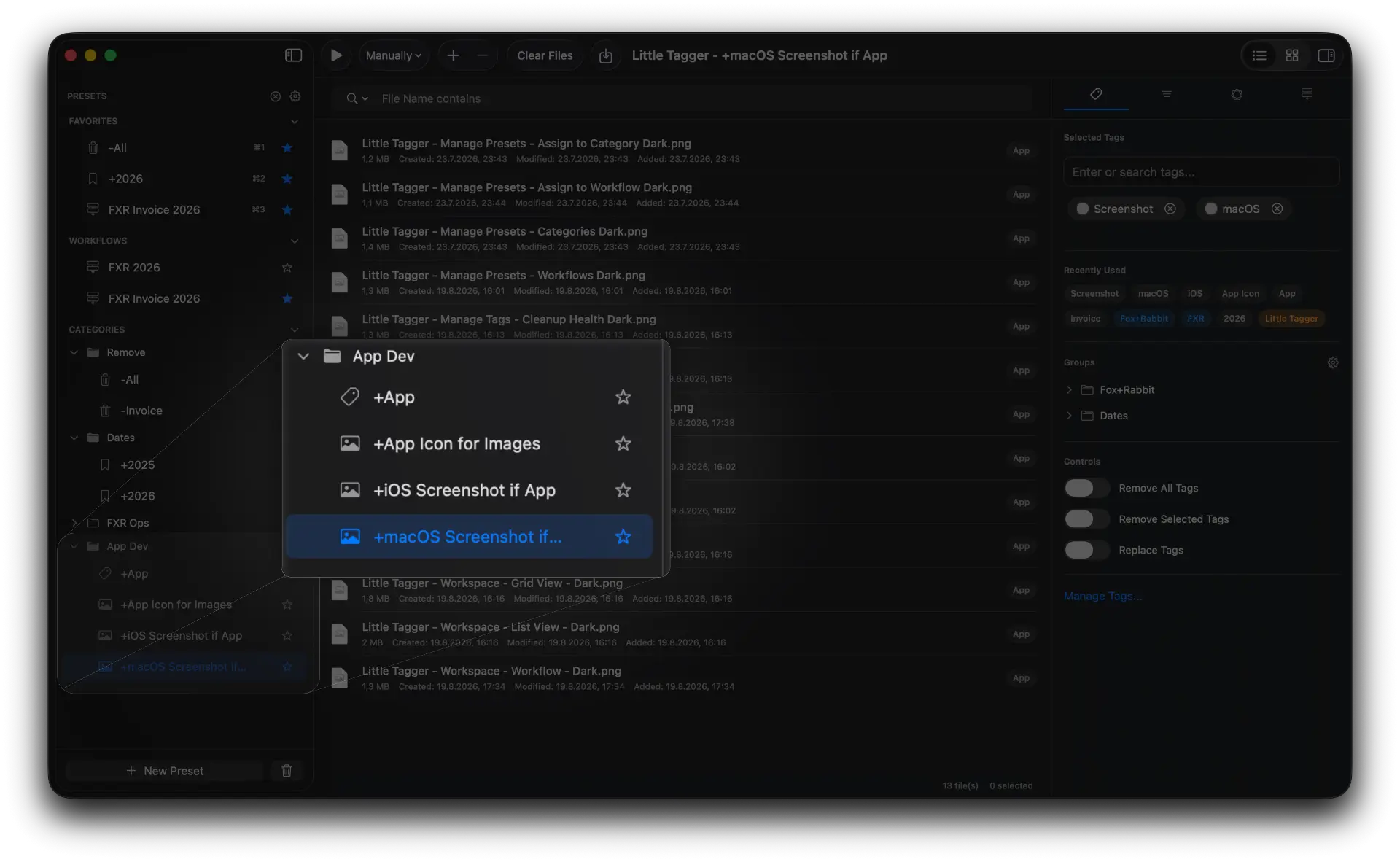
Each preset does one predictable job. Together they replace the tagging clicks you would otherwise repeat every week.
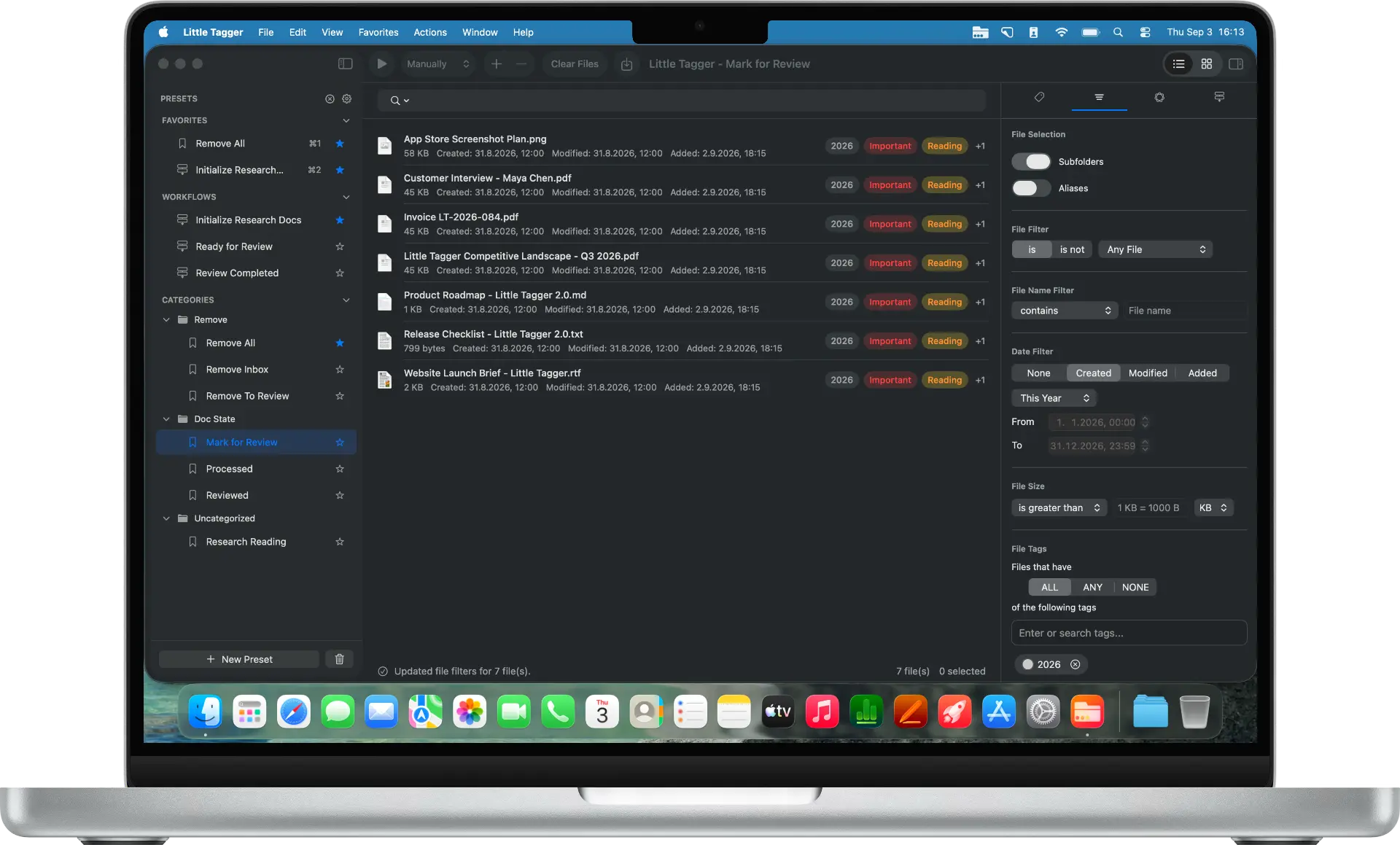
Save it once. Turn a tagging action into a reusable preset instead of selecting the same tags every time.
Turn a tagging action into a reusable preset instead of selecting the same tags every time.
Bundle the tags that belong together and apply the complete set in one go.
Each preset has one predictable job: add tags, remove tags, or replace one set with another.
Save filters with a preset so it only applies to matching files. Filter by file type, name, date, size or existing tags.
Apply presets manually, immediately or after a short delay when files enter the workspace.
A preset saves a recurring tagging action, including the tags, filters, processing options and timing. Reuse the same setup whenever the task comes up again.
One preset performs one action, add, remove or replace, across as many tags as the task needs.
Filters decide which files a preset applies to, so matching files can be handled differently from the rest.
Apply a preset manually, immediately, after 3 seconds or after 10 seconds when files enter the workspace.
File aliases are excluded by default. Include them only when they should be processed too.
Run a preset by itself or reuse it as one step in a larger tagging workflow.
Many tagging tasks follow the same pattern. A new batch of files arrives and some of the same tags need to be applied again.
Save that recurring action as a preset once. The next time the same task comes up, add the files to Little Tagger and reuse the preset instead of rebuilding the setup.
The files can change. The tagging setup stays reusable.
Worked example: add a project tag across a folder tree.
Tag files in seconds, automate recurring tagging work and take control of your entire tag system. Private, native, built for Mac.

Free for 7 days · macOS 15+ · Intel or Apple silicon