
For paperless homes & personal admin
A paperless system that keeps your files in Finder.
A paperless system does not have to mean importing every document into another app. Keep your existing files and folders, then use Finder tags to connect documents by subject, household item or next action.
Little Tagger helps with the organization of files you already have. Scanning, backups and deciding which originals to keep remain separate jobs.
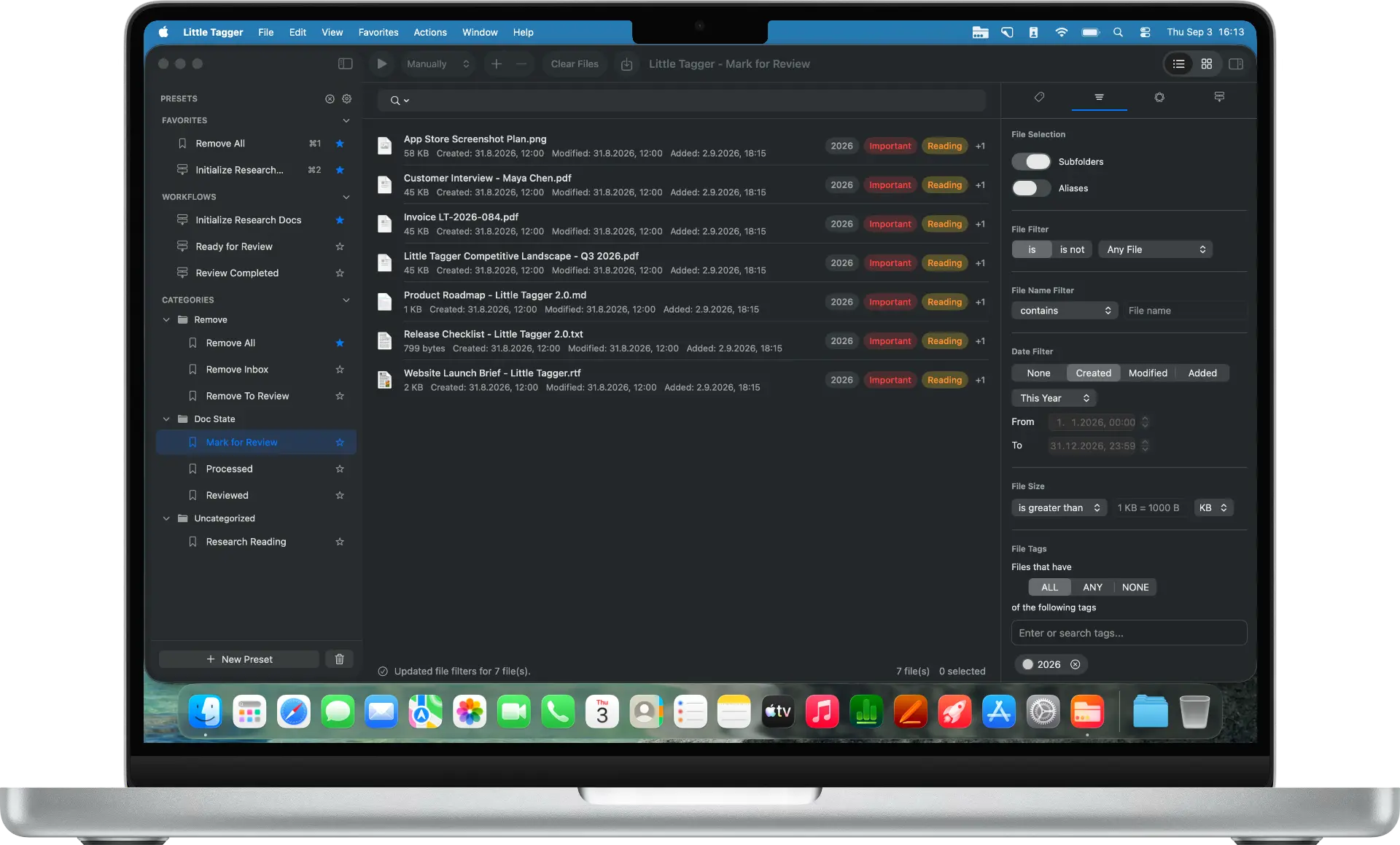
Find the paperwork around one thing.
Think about a washing machine. Its receipt might be in a purchases folder, the manual in Downloads and a repair report in your household documents.
The files are in sensible places, but you need to find them together when something goes wrong.
- Purchases/
- Receipt.pdf
- Downloads/
- Manual.pdf
- Household/
- Repair report.pdf
A shared “Washing Machine” tag can connect those documents. Add “Receipt”, “Manual” or “Repair” when that distinction helps. There is no need to create a second copy of each file in a new appliance folder.
That is the useful role of tags here: connecting documents you would otherwise have to remember separately.
Start with a small part of the household.
Choose one area you already need to manage. Home appliances, a renovation or vehicle paperwork are practical starting points.
Use your own names. If you have several properties or vehicles, give each a clear label rather than relying on “Home” or “Car” alone.
Avoid adding a year to everything by default. A year helps with an annual statement. It may add little to a manual you only retrieve by the appliance name.
Give incoming paperwork a next step.
A document is easier to deal with when you know why you kept it. “To Review” can mean it needs your attention. “Reference” can mean it is worth keeping for later.
Keep those meanings narrow. A quote needing a decision should not disappear into a general “Important” tag alongside manuals and receipts.
Review incoming files in a batch that suits your routine. Read the documents first, then label what they are and what you need to do. Tag suggestions may help with classification, but they should not decide a deadline or obligation for you.
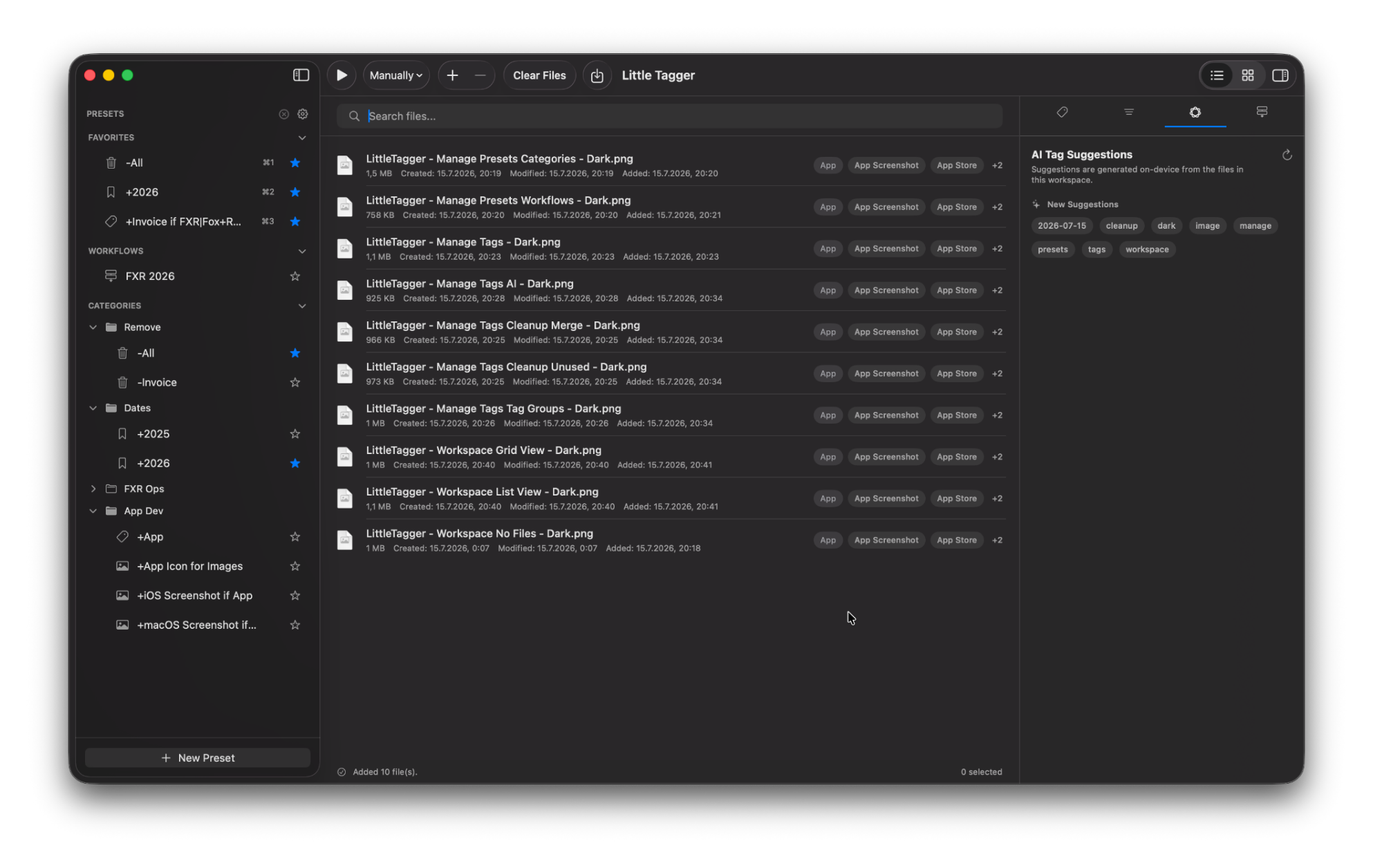
Suggestions are proposals you review on-device. Nothing is tagged until you decide.
Reuse the household tags.
In Little Tagger, an Add preset can apply the tags a group of files shares. A “Kitchen project” preset might add “Home” and “Kitchen Renovation”. Individual documents can then receive their own type or next-action tag.
For your first batch, use manual processing and add only the files you intend to change. Little Tagger does not move them into a separate document store. Presets work on Finder tags while keeping filenames, locations and contents unchanged.
Then check that it actually helps you find something.
Once the files are tagged, try finding the paperwork for one appliance without opening its original folders. Adjust the names around how you actually search.
A household does not need hundreds of carefully planned tags before the first document can be filed. Start with the names of the things you own, a few document types and a small next-action list.
- 1Pick one household item
- 2Gather its existing files
- 3Apply a shared item tag
- 4Search for it without the folder
Keep the system small enough to use.
If you notice “Repair”, “Repairs” and “Service Visit” being used for the same purpose, decide whether they really mean the same thing. Similar wording alone is not a reason to merge them.
Little Tagger can help organize and review your tag list within the locations it can access. The app’s tag groups help arrange that list; they are not extra folders or access permissions. See the tag management tools .
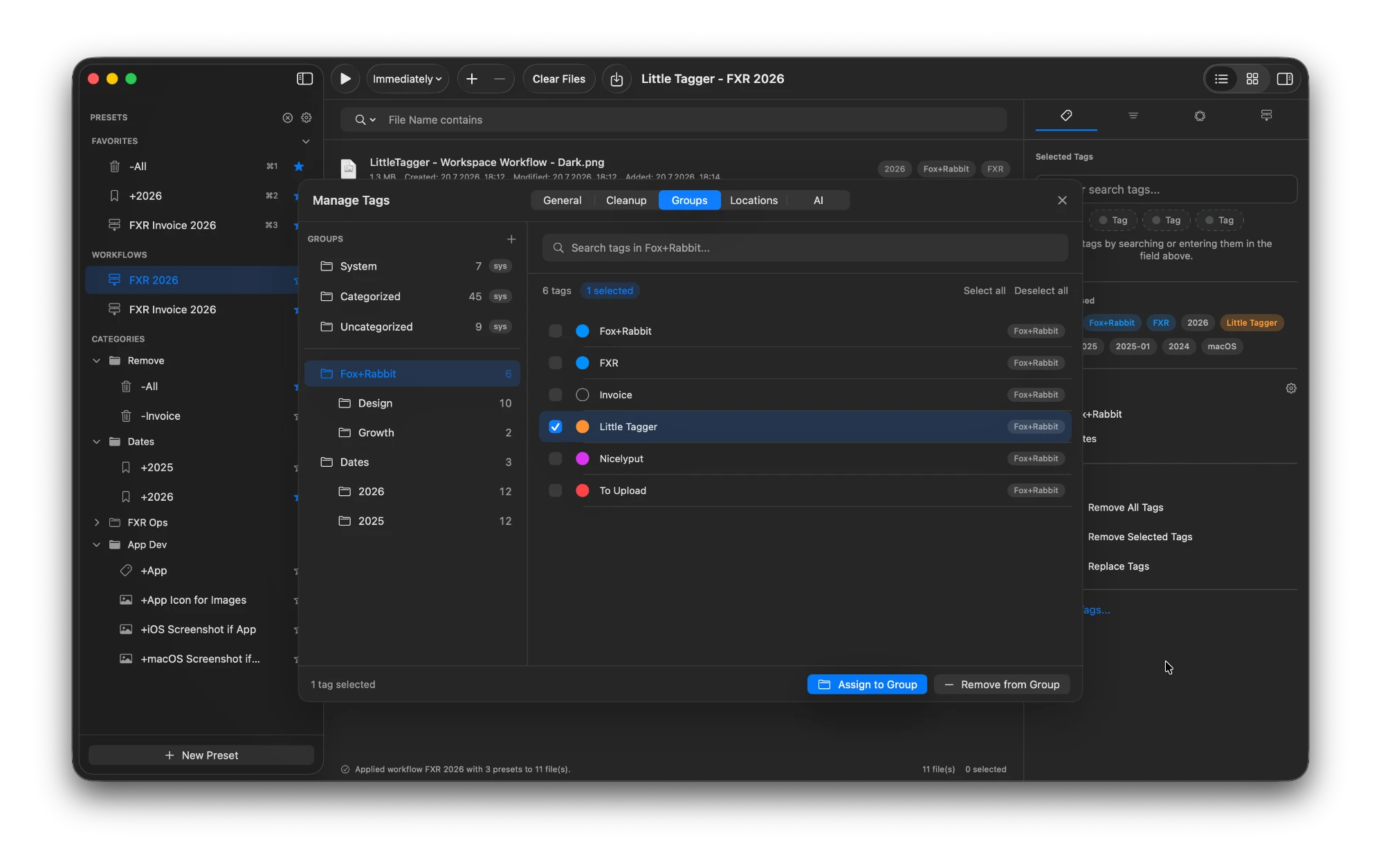
Groups keep a household tag list readable inside Little Tagger.
What stays outside this system.
Keep backups of important documents. Check a restored sample when changing your backup or storage setup, including any tag metadata you rely on.
- “Renewal” does not create a calendar event.
- “Private” does not encrypt a document.
- A file being easy to find does not determine whether the paper original should be discarded.
- Little Tagger is not a document scanner. Use the scanning tools you already prefer.
Tagging and cloud storage are separate concerns. Work with files that are available locally and accessible to the app, and test the exact storage and sharing route before depending on tag preservation.
This is for you if…
- You scan or download household paperwork and keep it on your Mac.
- The documents for one appliance, vehicle or project live in different folders.
- You want to know what still needs a decision.
- You do not want to import everything into another document app.
- You would rather start with one small area than plan a whole archive.
Start with the next document you need to find.
Pick one household item, gather its existing files and give them a shared tag. Private, native, built for Mac.

Free for 7 days · No account required · macOS 15+ · Intel or Apple silicon