
For photographers & digital media enthusiasts
One shoot. Hundreds of files. Only one folder to put them in.
Photo and design work produces volume very quickly. Raw captures, selects, edits, exports, client versions, reference images and mockups all pile up and the folder they live in says almost nothing about their state.
Finder tags can hold that state. Little Tagger makes applying and maintaining them practical at the volume creative work actually produces.
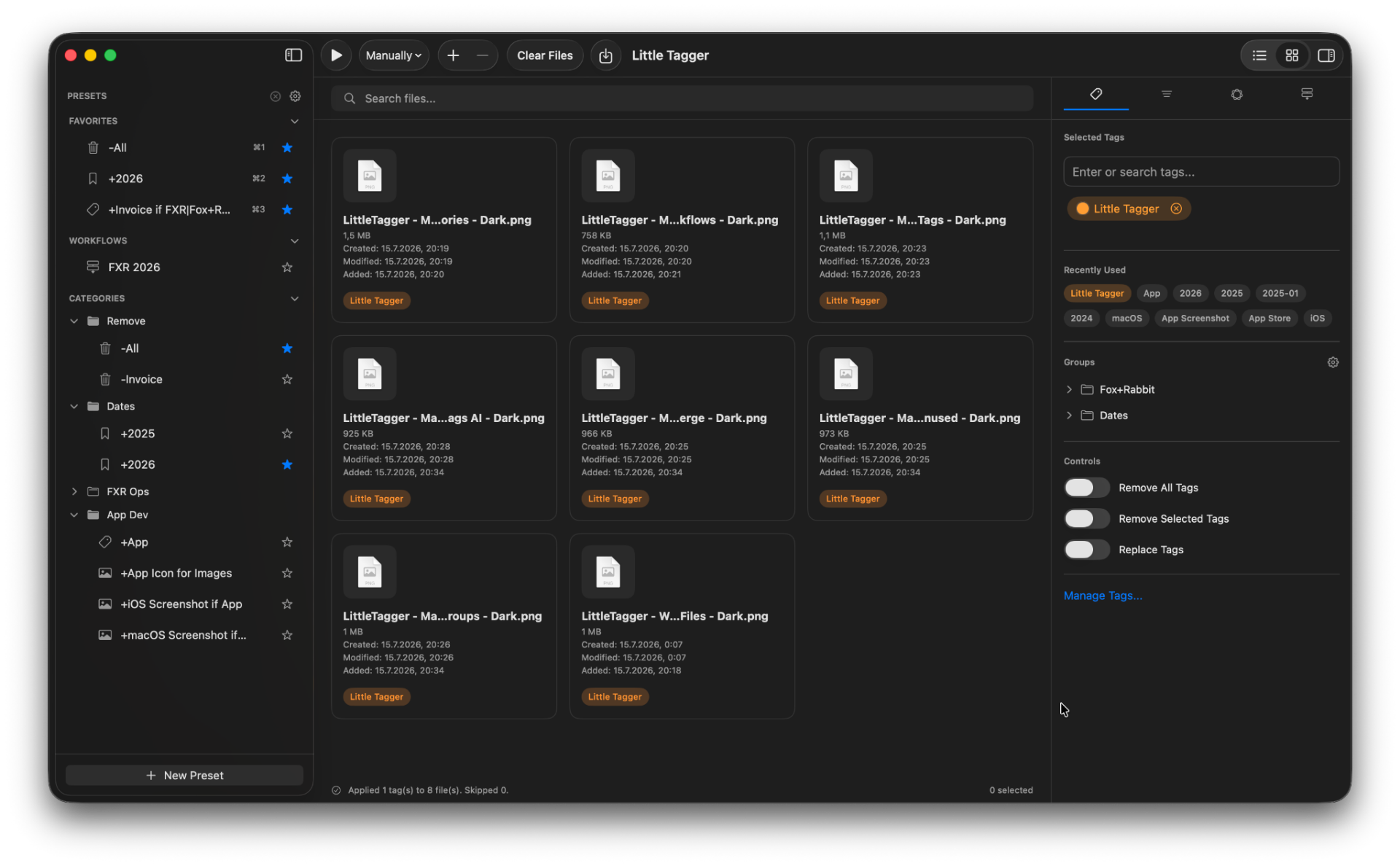
The file survives. The context does not.
A single session can leave you with a raw folder, an edit folder, an export folder and a delivery folder plus everything that was captured but never used. Months later the files are still there, but the reasoning behind them is gone.
- Which frames were actually selected?
- Which edits are final and which were experiments?
- Which version went to the client?
- Which images can be reused as portfolio material?
- Which assets are licensed, and which are only for reference?
Folders record where a file was put. Creative work depends on knowing what stage it reached.
Filenames are not a system.
The usual workaround is to encode status into filenames: “_final”, “_v2”, “_final_v3”, “_client”, “_use”. It works for a while and then quietly fails. Names get truncated, exports rewrite them, two people use different conventions and the meaning of “final” drifts.
Finder tags let you describe a file by project and stage without changing its name. A file can be both “Selected” and “Client Ready”. Do not assume the same labels will appear in a photo editor or survive every export, copy or sync route. Check a sample through the tools and storage you use.
Keep the shoot structure. Add the state on top.
Nothing about your existing folder discipline needs to change. Tags carry the part that folders cannot express and they stay readable in Finder.
- 2026-04 Harbour/
- RAW/
- Selects/
- Edits/
- Exports/
Scenario
A realistic post-production pass
You come back from a shoot with several hundred images. A first pass separates what is usable. A second pass narrows that down to the frames you will edit. After editing, some exports go to a client, some go to your portfolio and some stay as alternatives.
Each of those passes is essentially the same tagging action applied to a different set of files. Exactly the kind of repetition a preset removes.
Batches are where manual tagging breaks down.
Tagging twelve files by hand is fine. Tagging two hundred is not. Little Tagger works on the files you add to the workspace, applies presets across the whole selection and can run several steps in a defined order.
Workflows run when you decide: manually, immediately or after a short delay once files land in the workspace. Nothing watches your folders in the background and nothing is changed without you starting it.
- 1Remove Needs Review
- 2Add Client Ready
- 3Add Harbour April
- 4Add Portfolio to the final selects
Need consistent filenames for a delivery?
Use the separate free browser file renamer to replace text or number a batch of exports. Drag files into delivery order, add numbers before or after their names, review the live preview and select Save Files for a ZIP of renamed copies. Files stay on your device and the originals stay unchanged.
The renamer changes names. The Little Tagger Mac app manages Finder tags, so project and review-status tags can connect your working files while their names stay as they are.
When you cannot remember what is in the frame.
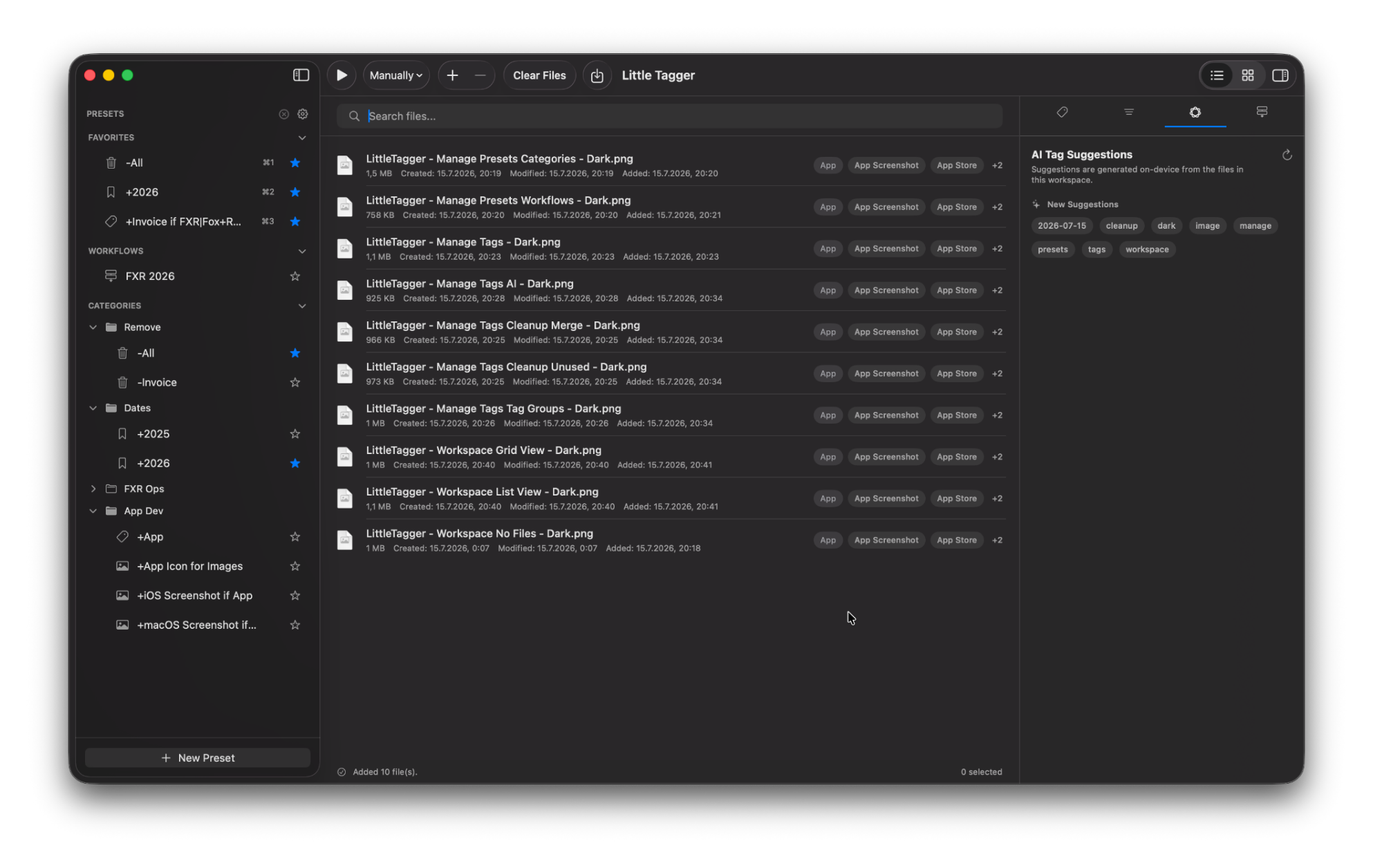
Visual archives have a specific problem: the filename tells you nothing. On supported Macs, Little Tagger can use Apple Intelligence to suggest tags based on the files in your workspace, including image content, metadata, existing tags and other available context.
Processing happens on-device. No account, no uploads, no third-party AI service. Suggestions are proposals. You choose which ones are applied and you can decide which kinds of suggestions you want at all. Read how on-device suggestions work .
An asset library that stays consistent.
Creative tag lists grow fast: shoots, clients, styles, subjects, stages, licences. Little Tagger gives that library its own environment with groups, usage overviews, unused tags and similar names you can review and merge deliberately.
Nothing is renamed or merged automatically. You see what looks duplicated and decide what should happen. See the tag management environment .
What changes in practice
- Edit stage lives on the file instead of in its filename.
- Selects, deliveries and portfolio material stay identifiable months later.
- Repeating passes take one action instead of hundreds.
- Your tag vocabulary stays consistent across shoots and clients.
- Everything remains native Finder tags, readable outside Little Tagger.
Little Tagger is not a photo editor or a digital asset manager. It organizes files that already live on your Mac using Finder tags.
This is for you if…
- You produce large batches of images, exports or design assets.
- You encode status into filenames because there is nowhere else to put it.
- You need to find selects, finals or client versions long after the project ended.
- You reuse the same shoot, stage and delivery tags over and over.
- You want a system that stays inside macOS and stays yours.
Keep the context of every shoot, not just the files.
Tag files in seconds, automate recurring tagging work and take control of your entire tag system. Private, native, built for Mac.

Free for 7 days · No account required · macOS 15+ · Intel or Apple silicon