
For Mac power users
You already tag. The system is what needs help.
Finder already lets you tag several files, add more than one tag and find files by their tags. The extra work appears when you repeat the same tagging routine or try to keep a growing tag list consistent.
Little Tagger gives those recurring jobs a dedicated place. Save the tag actions you use often, run them in a clear order and maintain the names you want to keep using.
A place for the work you repeat
A small tag list is easy to manage. Over time, you may find yourself choosing the same combinations, changing the same status tags and sorting through old names. Finder's built-in controls remain useful. Little Tagger adds reusable actions and a more focused place to maintain the system.
- The same three or four tags get chosen together, week after week.
- New tags are created because finding the existing one takes longer.
- Old project tags never disappear.
- Near-duplicates accumulate quietly.
- There is no overview of the system as a whole.
Presets and workflows run on files you add to the workspace. Tag-library scans and changes use the folders and volumes you have allowed Little Tagger to access. Review that scope before applying a wider change.
Drift is the real failure mode.
A tag list that started deliberate becomes archaeology. Capitalization varies. Singular and plural coexist. Two words describe the same concept. Statuses that mattered for one quarter stay forever.
Encode the conventions instead of remembering them.
Most power-user tagging is convention: certain files always get a context tag, a type tag and a status tag. A preset turns that convention into a single reusable action and presets can be organized into categories so a large set stays navigable.
Presets can add tags and they can remove them too, which is what makes status transitions practical rather than tedious.
Sequences, not single actions.
Real tagging routines have an order: clean up what is stale, then classify, then mark state. Workflows chain reusable presets and run them from top to bottom on the files in your workspace.
Execution stays explicit. You add the files. You choose whether the workflow runs manually, immediately or after a short delay once files arrive. There is no background folder watching and no automation running without you.
- 1Remove Active
- 2Add Archive
- 3Add the year tag
- 4Remove temporary status tags
A place for the work you repeat
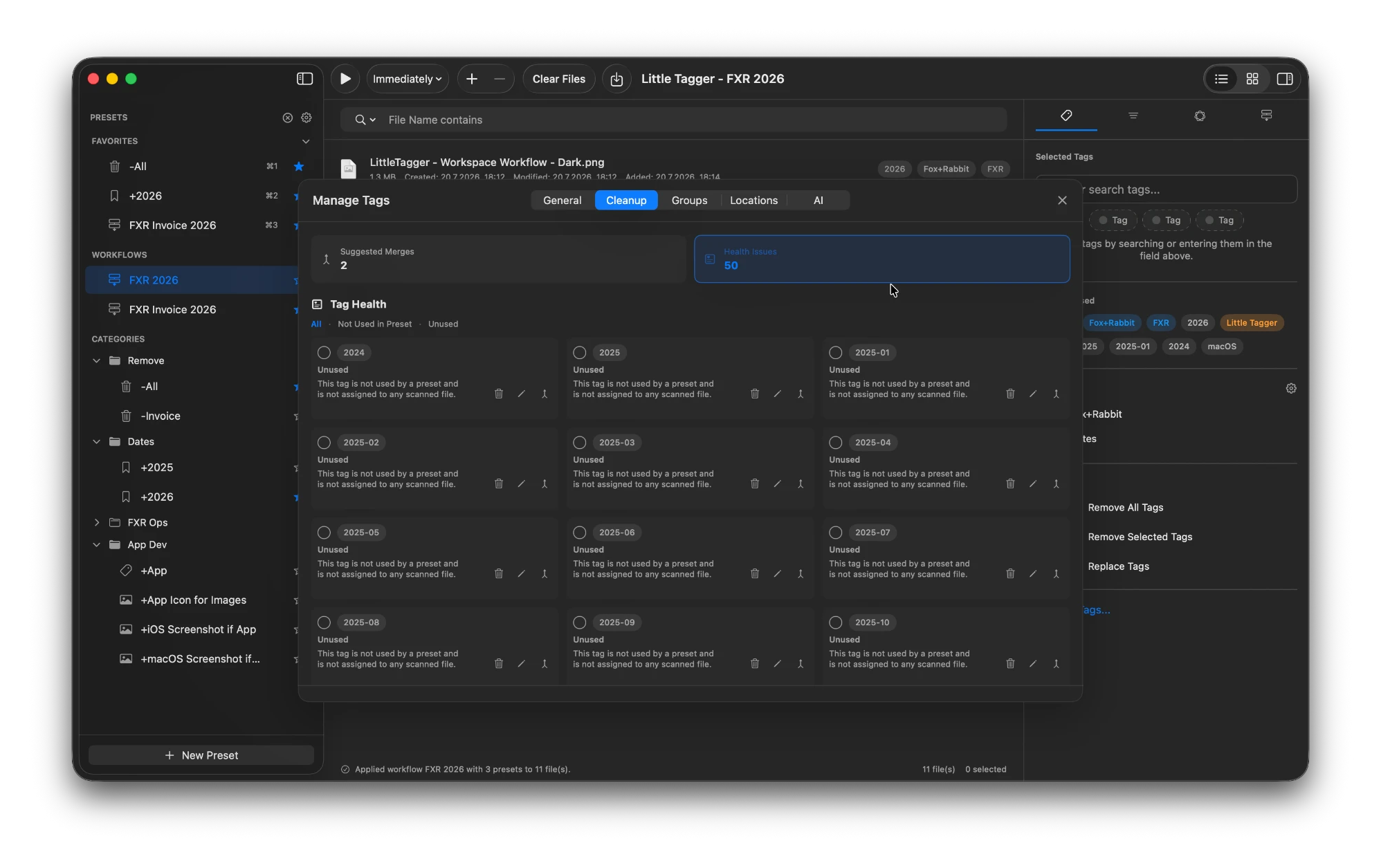
Little Tagger treats the tag library as a first-class object. You can see every tag, how much it is used, which tags are unused, which names look similar, how tags are grouped and act on that in one place.
- Groups to give a large vocabulary structure.
- Usage overviews so you know what is still doing work.
- Unused and orphaned tags surfaced for removal.
- Similar names detected and merged only after you confirm.
- Rename and delete operations you initiate deliberately.
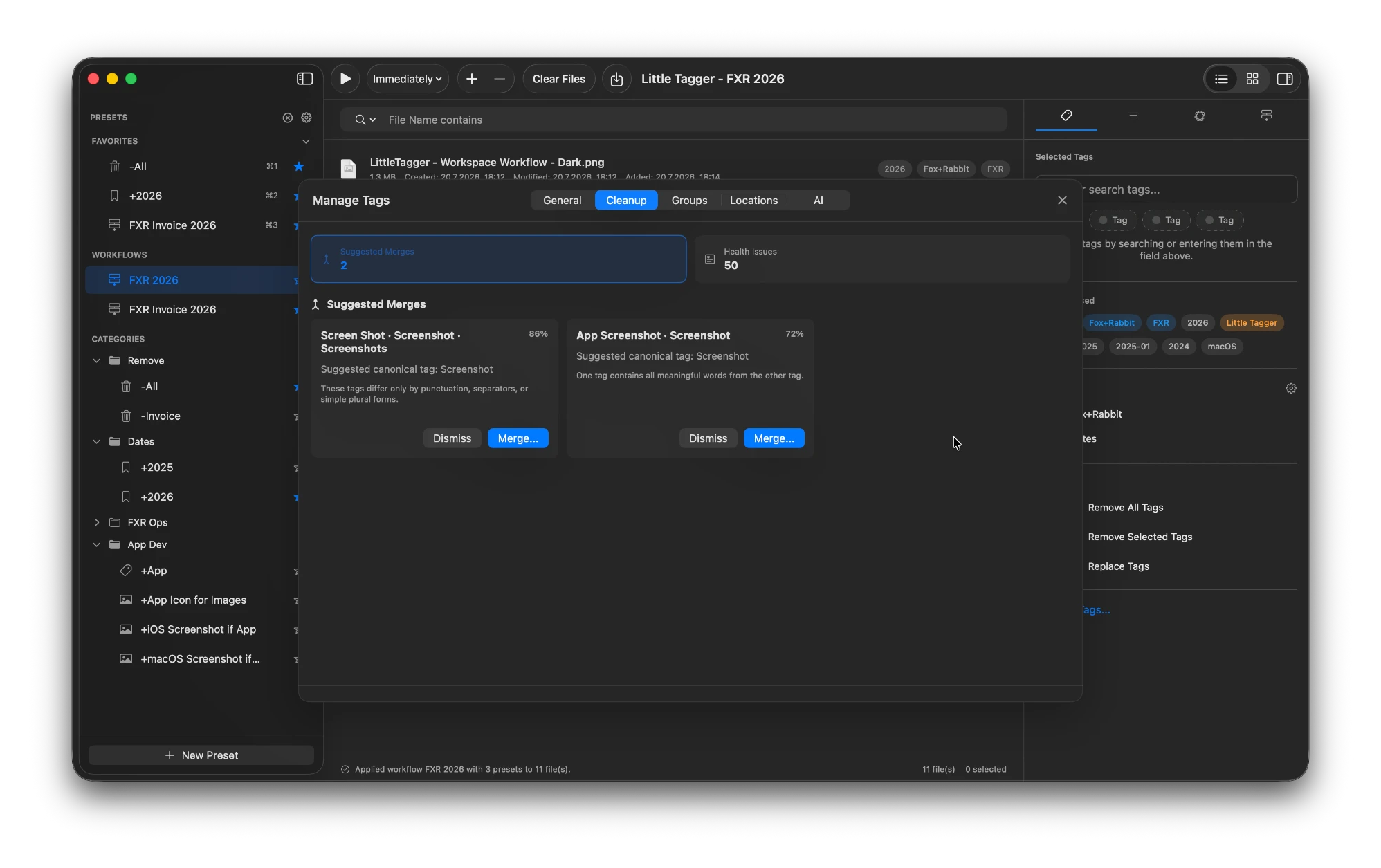
Merging is a reviewed decision, never an automatic one.
Automation you start. Judgement you keep.
Power users are rightly suspicious of tools that reorganize things on their behalf. Little Tagger only works on the files you add to its workspace. Tag processing runs only when you trigger it. Suggestions are proposals.
On supported Macs, Apple Intelligence can suggest tags and merges using file content, filenames, metadata, images, existing tags and other available context, entirely on-device. No account, no uploads, no third-party AI service. You choose which suggestion types you want and which suggestions get applied. Read how on-device suggestions work.
Everything stays native. Your tags remain standard Finder tags, usable in Finder, Spotlight and Smart Folders, with or without Little Tagger.
This is for you if…
- You already use Finder tags and have hit the limits of doing it by hand.
- You apply the same tag combinations repeatedly.
- Your tag list contains duplicates, near-duplicates and dead statuses.
- You want to stay in control, not background magic.
- You prefer native macOS behavior over a proprietary database.
Give your tag system the tooling macOS left out.
Tag files in seconds, automate recurring tagging work and take control of your entire tag system. Private, native, built for Mac.

Free for 7 days · No account required · macOS 15+ · Apple Silicon