
For consultants, freelancers & studios
Organize client files by client, project and status.
Keep each file in its project folder and use Finder tags to show who it belongs to, which job it supports and what needs to happen next. Little Tagger helps you apply those choices consistently as new work arrives.
The useful part is not having more labels. It is being able to find the brief, proposal or deliverable without remembering where you last put it.
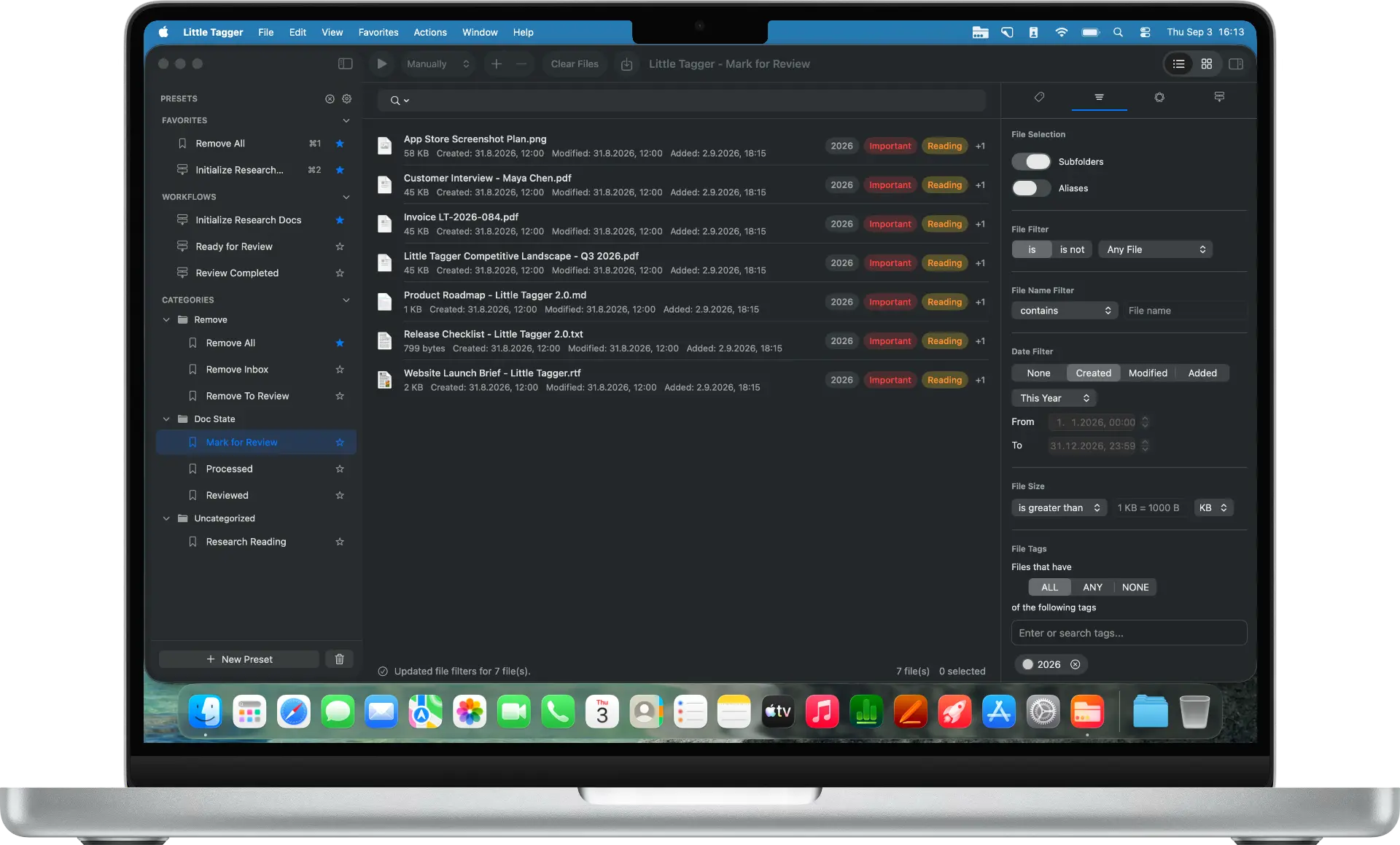
A client folder does not tell you what is ready.
Consider a website project for a fictional client called Northline. Your files include a signed brief, workshop notes, a proposal and several design exports.
Some are ready to send. Others need your attention. A few are useful reference material for the next project.
A client folder keeps the work together. Tags can describe the differences inside it.
Each line describes a choice you make. Little Tagger does not infer that a brief is signed or a proposal is approved from the filename.
Save the part that every file shares.
Create a project preset that adds “Northline” and “Website Refresh”. When another batch of files belongs to that project, reuse the preset instead of choosing those tags again.
Keep document types and statuses separate unless every file in the batch really shares them. A PDF export might be a proposal, an invoice or a reference document. The file type alone does not tell you which.
Choose the files deliberately. For your first run, use manual processing and a small batch. You can add files with drag and drop, Add Files or the Finder shortcut, Command+Shift+E.
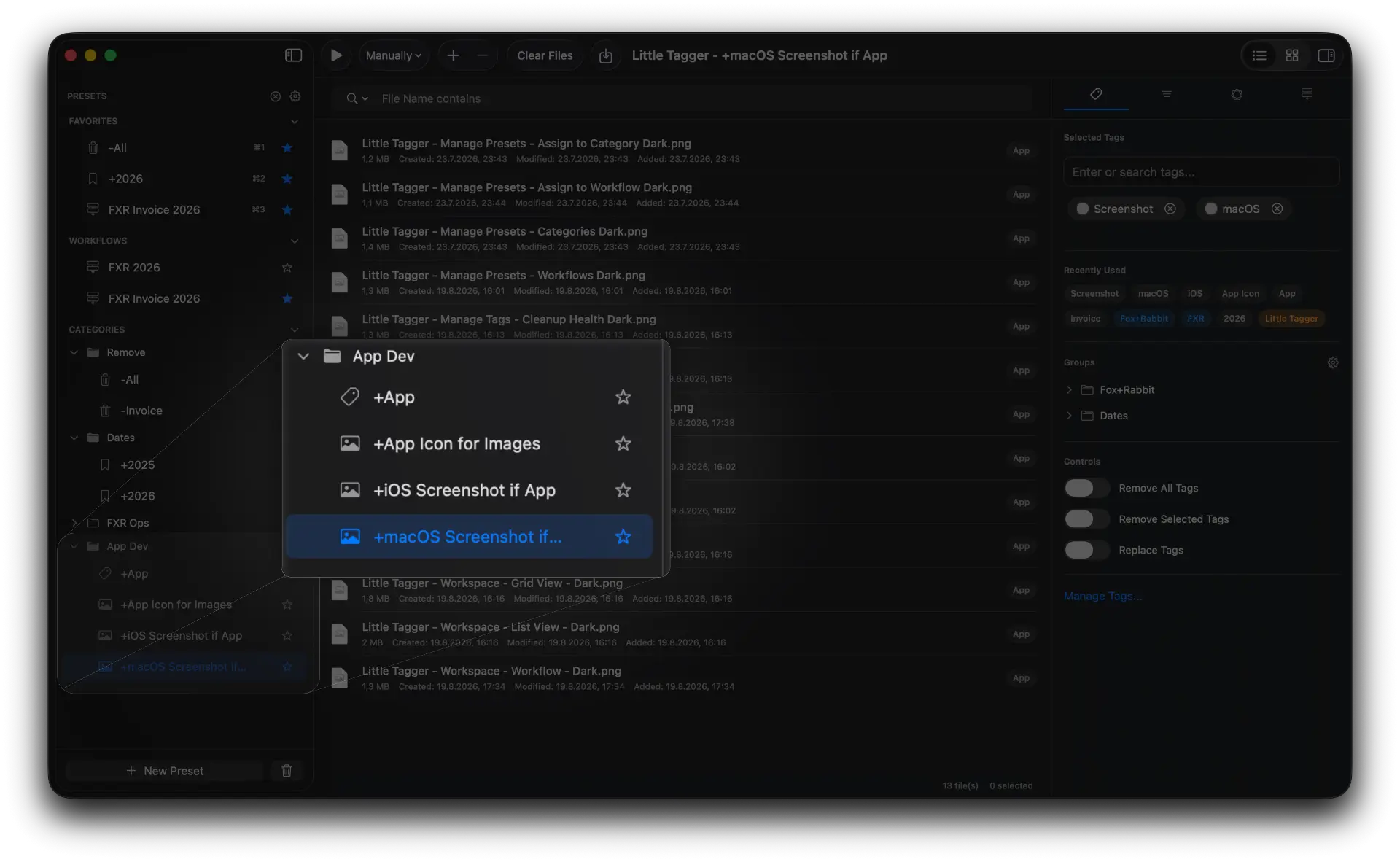
Recurring client and project classification saved once, reused on every new batch.
Change the status without removing the project.
Once you have checked the proposal, its next step may change from “Needs Review” to “Ready to Send”. For the files you have actually approved, use a workflow with two actions.
The client and project tags stay in place. There is no need to clear the whole tag set just to update one status.
Keep “Ready to Send” distinct from “Sent”. One is a decision; the other records an action that has happened. Apply the second only after delivery.
- 1Remove "Needs Review"
- 2Add "Ready to Send"
Build a view around the next question.
You might want to see everything awaiting review, across all clients. At another time, you only need the Northline handover files.
Use those questions to decide which tags deserve a place in your system. Avoid creating a tag for every possible field just because the file could have one.
A useful status has a meaning you can explain in a sentence. “Needs Review” means you must check the work. “Waiting for Client” means you have asked for something and are waiting for a response. Those are different next actions.
Keep client names consistent.
A growing client list can end up with “Northline”, “Northline Studio” and “Northline Ltd” describing the same work. Choose the name you use day to day and keep it consistent.
Usage and cleanup depend on the locations the app can access and has scanned. Tag groups help you organize the list inside Little Tagger. They do not create shared client records or a matching group hierarchy in Finder.
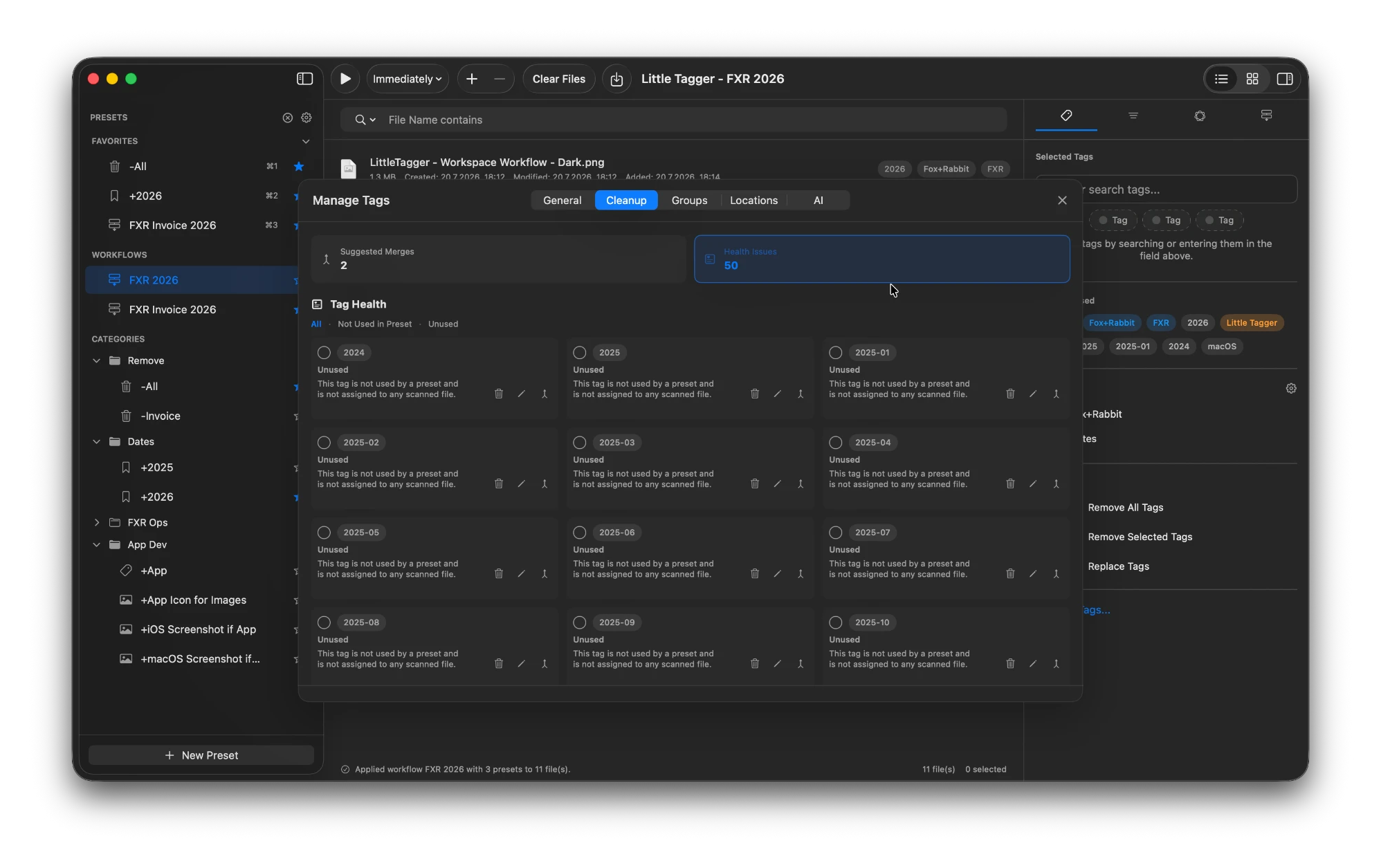
Similar client names surface for review instead of quietly multiplying.
For your files, not a team approval system.
This approach suits people who manage their own working files on a Mac. It is not a replacement for a shared approval tool, version history, access control or a customer database.
- A tag called “Approved” does not record who approved a document.
- A tag called “Confidential” does not restrict access.
- Little Tagger changes Finder tags without moving or renaming files.
- It does not continuously watch folders; you supply the files and choose when tagging runs.
Keep those responsibilities in the systems you use for them. The Hazel comparison explains the difference from watched-folder automation.
This is for you if…
- You keep briefs, proposals and deliverables for several clients on your Mac.
- Your client folders are fine, but they do not show what is ready to send.
- You apply the same client and project tags with every new batch of work.
- Client names have started to drift into several spellings.
- You want a status view without adopting a shared project management tool.
Give your next client project a repeatable start.
Set up one project preset and a small status list, then use them on the next batch of client files. Private, native, built for Mac.

Free for 7 days · No account required · macOS 15+ · Intel or Apple silicon