
Comparison
Little Tagger vs Hazel: Tagging Workflows or Watched-Folder Automation?
Choose Hazel when files should be processed automatically as they arrive in a watched folder. Choose Little Tagger when you want to bring in a deliberate batch, apply reusable Finder-tag actions and maintain the tag list.
Both can be useful in a Mac file workflow. They start from different jobs, rather than offering a simple choice between "automatic" and "manual" tagging.
What starts the work?
Hazel watches folders you select and applies rules when files meet their conditions. Those rules can do more than tagging, including moving, renaming and archiving files.
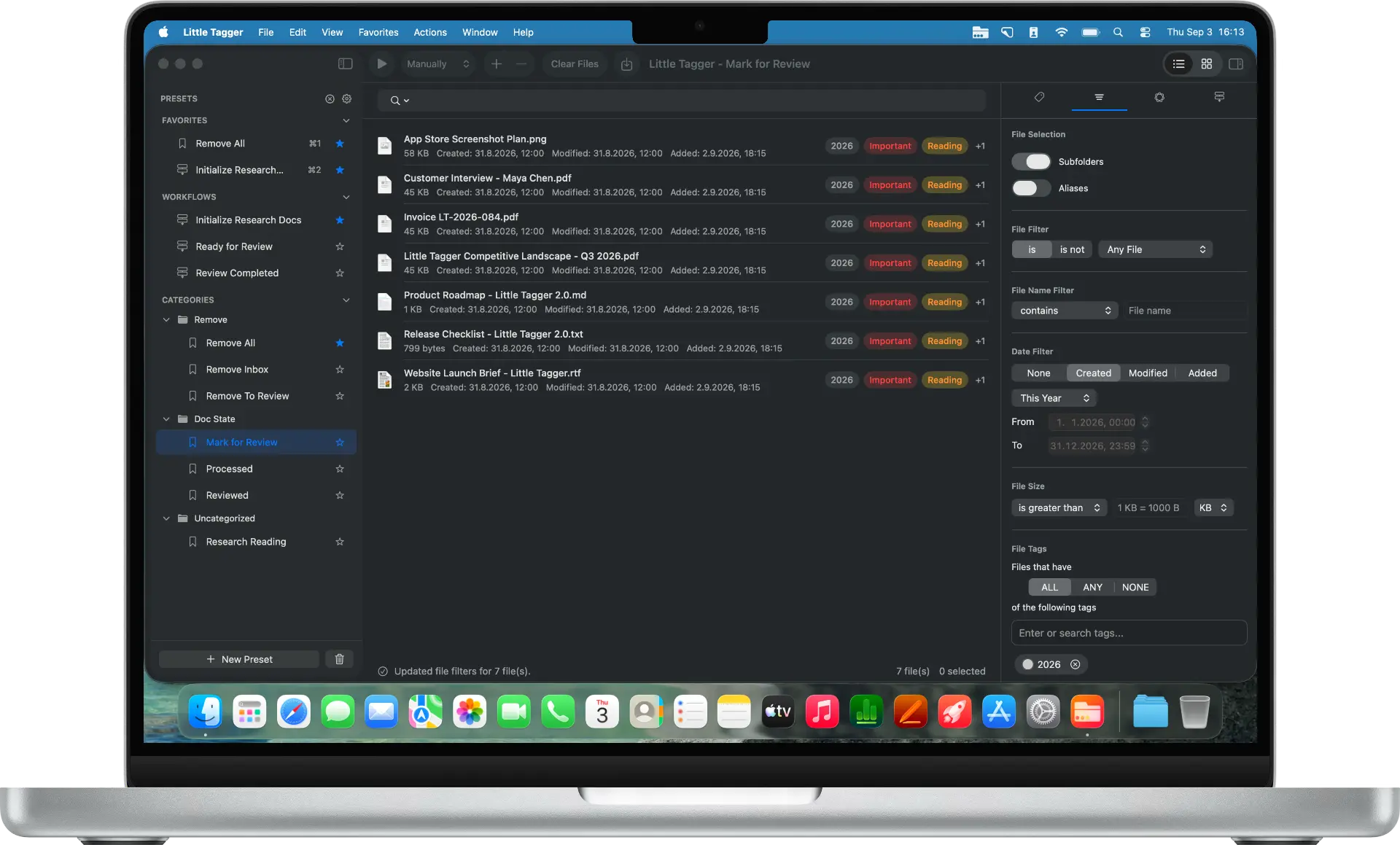
Little Tagger does not continuously watch folders. You add files to its workspace. Configured presets and workflows can then run manually, immediately or after a short delay.
For a first Little Tagger workflow, use manual processing and a small sample. Once you understand the result, decide whether an automatic timing option is appropriate for the batches you supply.
Hazel can work with Finder tags too
Hazel is not limited to sorting files into folders. Its action reference includes adding and removing tags. Its rules can also use Finder tags as conditions.
You can configure a Hazel rule that only changes tags. Moving or renaming is not compulsory.
That makes the useful comparison more specific: do you need ongoing rule-based file processing, or a focused way to perform and maintain your tagging routines?
| Task | Little Tagger | Hazel |
|---|---|---|
| Start with a chosen batch | Files supplied to the workspace | Folder rules can be run on matching files |
| Process future arrivals in a folder | No continuous folder watching | Watched-folder rules |
| Add or remove Finder tags | Manual actions, presets and workflows | Rule actions |
| Move or rename files | Not part of its tagging workflow | Available rule actions |
| Arrange and clean up a tag vocabulary | Dedicated tag-management tools | Primarily organized around folder rules |
The distinction is focus. Little Tagger gives the tag vocabulary its own workspace, while Hazel organizes automation around folders and rules.
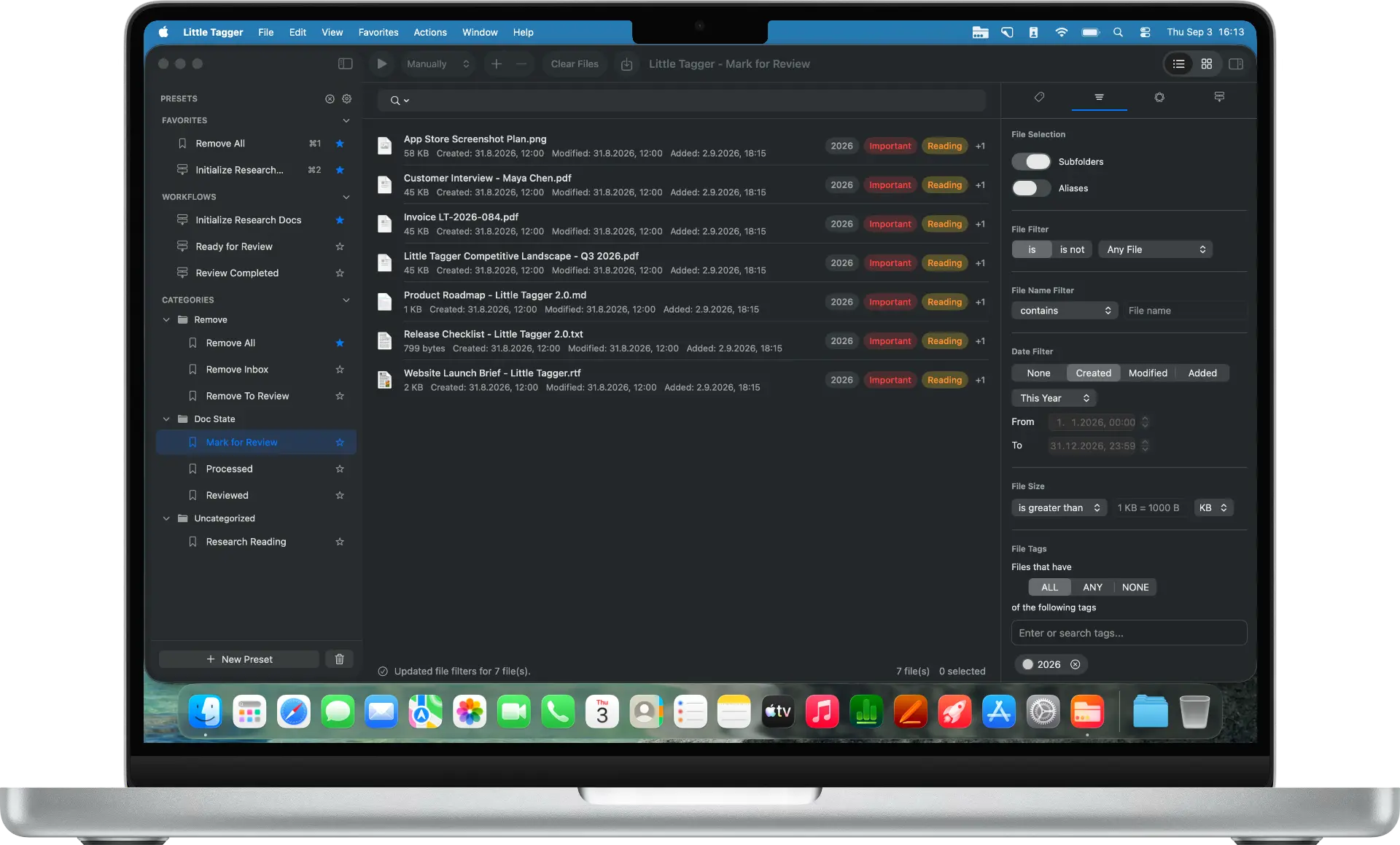
Little Tagger works on the files you supply, using native Finder tags.
A Downloads folder points toward Hazel
Suppose you want new downloads to be checked as they arrive, renamed according to a convention and moved into the appropriate folders.
That is the kind of ongoing file processing Hazel is built for. Little Tagger is not a substitute for the watching, moving or renaming parts of that job.
Use conditions you understand and test the rules on disposable files before applying them broadly. Being able to automate an action does not make the classification rule correct.
A project review points toward Little Tagger
Now consider a group of client deliverables you have just checked. You want to keep the files where they are, remove "Needs Review" and add "Ready to Send".
Little Tagger lets you reuse that sequence as a workflow on the batch you supply. Project and client tags can stay in place while the status changes.
The decision about which files are ready is yours. You are saving the repeated tag edits, not asking a folder rule to make an approval decision.
The client-project use case shows a small tag system around this process.
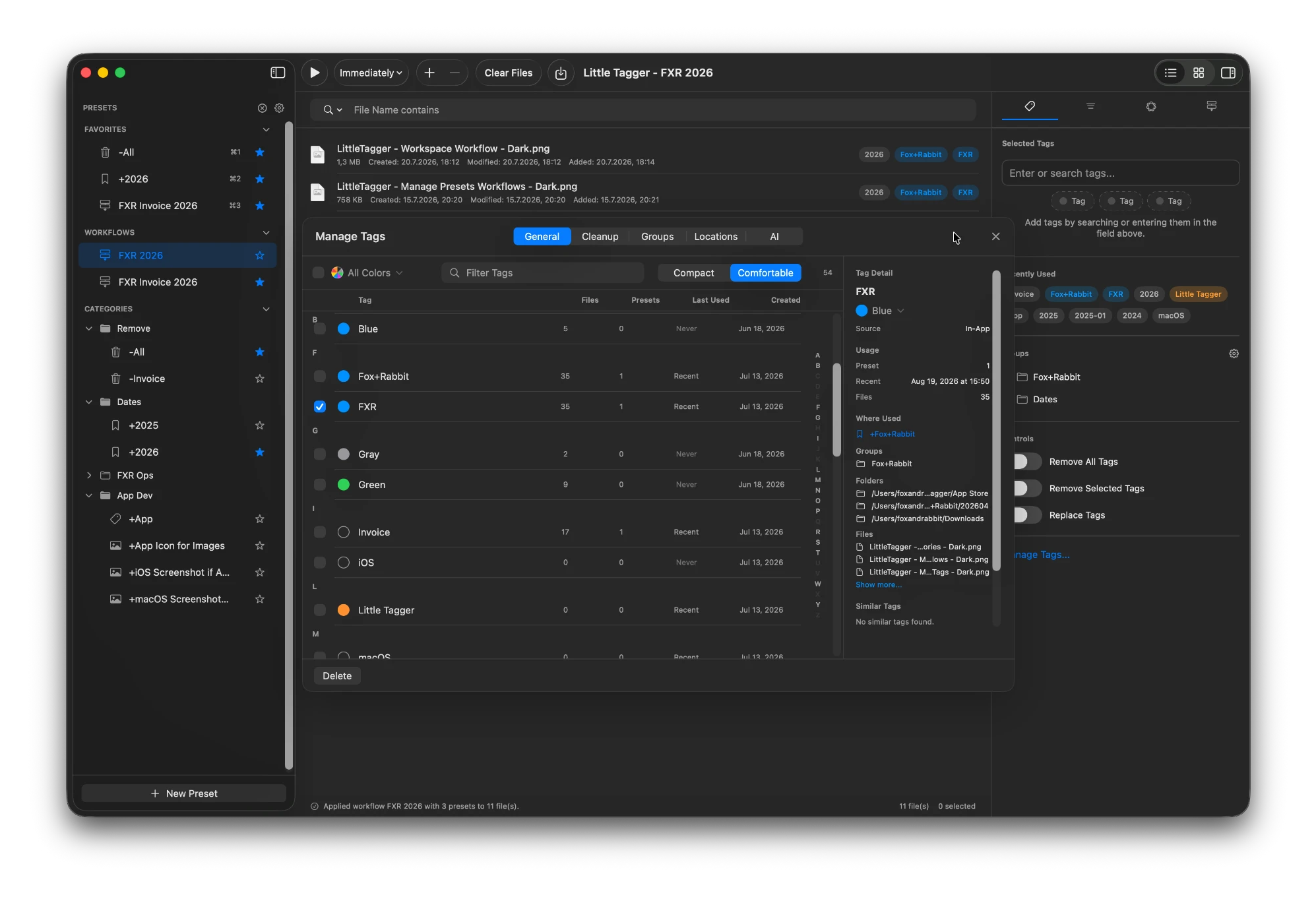
The tag library gets its own workspace: usage, groups and similar names in one place.
Could you use them together?
You could assign different responsibilities to the two tools. Hazel might handle an intake folder; Little Tagger could help classify selected files later and keep the tag vocabulary consistent.
That is a proposed workflow, not a dedicated integration. Be careful when both tools operate on the same files. A tag change from one app may match a rule in the other.
Test the combined behavior on a small sample. Avoid rules that keep undoing each other's status changes, and keep moving or deletion actions outside an experiment until the results are understood.
Make the decision around the job
For files that should be processed as they arrive, explore Hazel's automation. For recurring Finder-tag actions that you start with a selected batch, plus a place to maintain the vocabulary, try Little Tagger.
Keep your files where they are. Make the tagging repeatable.
Tag files in seconds, automate recurring tagging work and take control of your entire tag system. Private, native, built for Mac.

Free for 7 days · No account required · macOS 15+ · Intel or Apple silicon