
Comparison
Little Tagger vs Finder: When Is a Tag Manager Worth It?
Use Finder when you need a few tags and occasional batch edits. Consider Little Tagger when the same tagging routine keeps returning, or maintaining the tag list has become a job of its own.
Little Tagger works with Finder tags. It does not replace Finder or ask you to move your documents into another library.
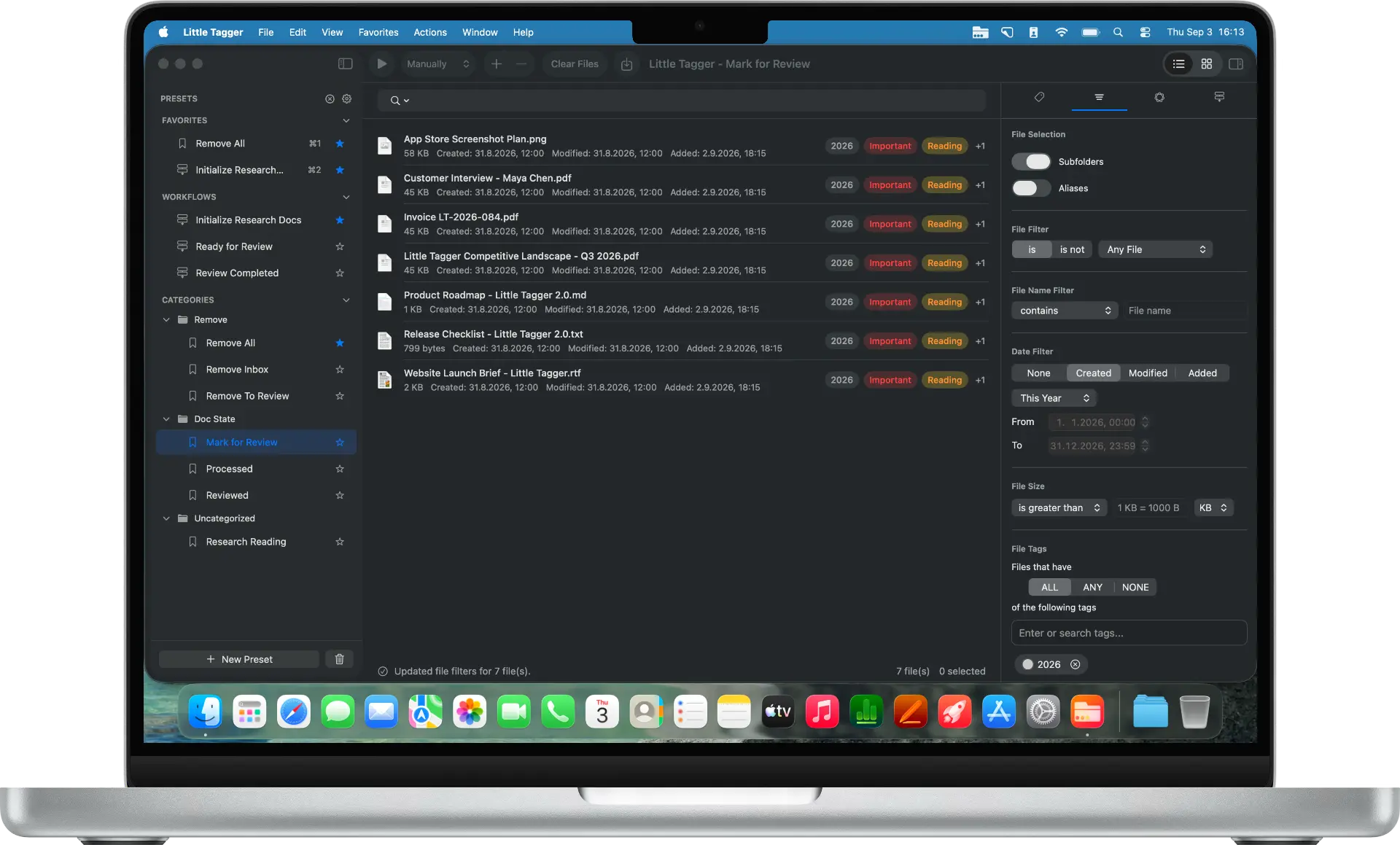
Start with what Finder already does
Finder supports multiple tags on a file, tagging selected items, searching by tag and editing the tag list. You can rename tags, change their colors and choose which ones appear in the sidebar. Apple's tagging guide covers those controls.
That is a useful set of tools. You do not need another app just to label a few documents "Reference" or "To Review".
Before buying anything, try a small tag list on one active project. The starter system guide can help you choose names that you will actually use.
Look at the work you repeat
The question changes when you apply the same combination every week.
Suppose a batch of project documents needs "Northline", "Website Refresh" and "To Review". Later, selected documents need "To Review" removed and "Ready to Send" added.
You can manage those tags by hand. Little Tagger lets you save the tagging actions as presets and combine separate actions into an ordered workflow.
The benefit is remembering and reusing the routine, rather than inventing another kind of tag.
| Your task | Finder | Little Tagger |
|---|---|---|
| Add tags to selected files | Built-in tag controls | Manual tagging and reusable presets |
| Use several tags on a file | Supported | Uses the same native Finder tags |
| Repeat a familiar tag combination | Choose the tags for the task | Save an Add preset |
| Apply several tagging steps | Carry out the edits | Run presets in a defined order |
| Maintain tag names | Tag settings | Dedicated management, groups and review tools |
| Keep working in existing folders | Yes | Yes; tagging does not move files |
Finder's current controls are documented in Apple's Finder settings guide. Little Tagger's presets page explains its reusable actions.
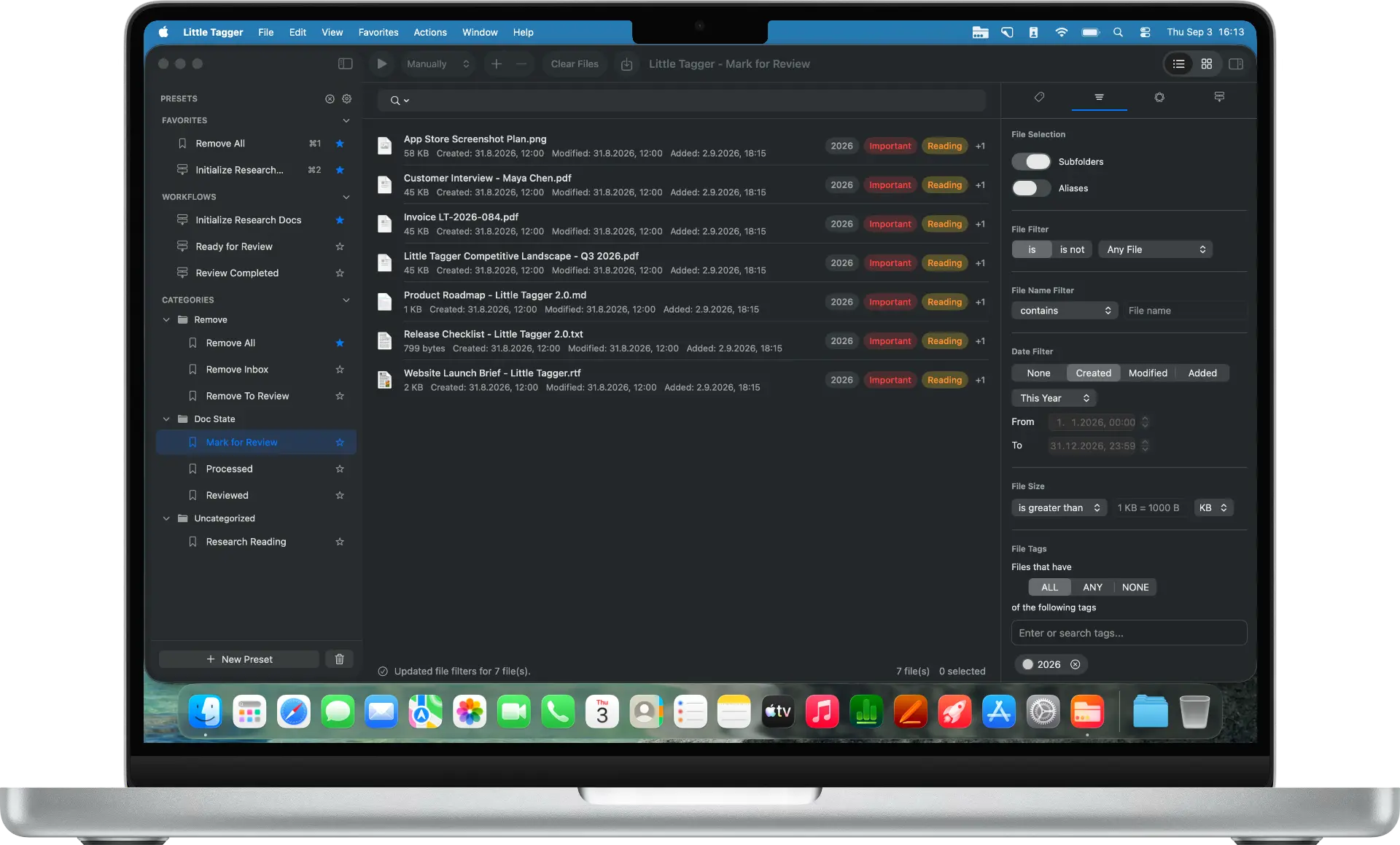
Little Tagger works on the files you supply, using native Finder tags.
Think about the tag list as well as the files
A short list is easy to remember. A list built across several years can contain old statuses, alternate spellings and tags whose purpose is no longer clear.
Little Tagger provides a dedicated place to inspect and organize that vocabulary. You can arrange tags into groups and review similar names before deciding whether to merge them.
Groups exist inside Little Tagger. They do not change Finder's tag structure. Usage information also depends on the locations the app can access and has scanned, not every file on every drive you own.
Do not merge two tags merely because their names look similar. "Reviewed" and "Approved" can represent different decisions.
Finder is probably enough
Tagging is occasional, your list is short and choosing the tags each time costs you nothing. You tag a handful of files, search for them later and rarely revisit the names. There is no benefit in adding an app to solve repetition you do not have.
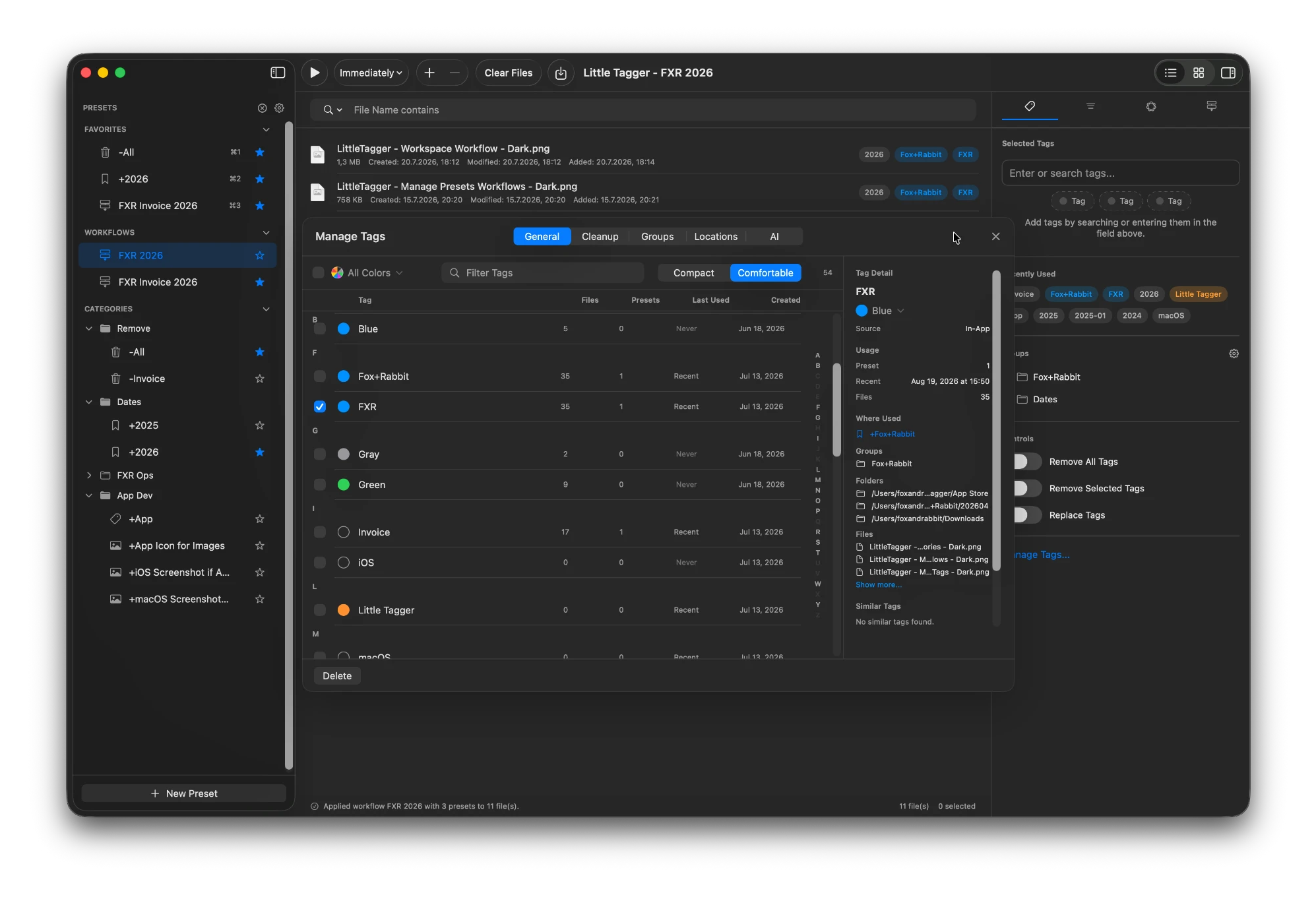
The tag library gets its own workspace: usage, groups and similar names in one place.
Little Tagger is worth a closer look
The same tag combination returns every week, a status change means several edits in a set order, or the tag list itself has become something you maintain. Those are the jobs Little Tagger is built around: saved actions, ordered workflows and a dedicated place for the vocabulary.
Apple Intelligence is optional in Little Tagger. Core tagging, presets, workflows and tag management do not depend on it. Suggestions require a supported setup and remain a separate choice.
Can you use both?
Yes. They work with the same native tags. You can apply a preset in Little Tagger, return to Finder and continue working with the original files.
Little Tagger does not continuously watch folders. You supply the files to its workspace and choose when the configured tagging runs. For automatic rules on a watched folder, read the Hazel comparison.
Try it on a routine you already know
Pick one tagging task you repeat, not a whole disk to reorganize. Two worked examples show what changes and what stays: add a project tag across a folder tree and consolidate inconsistent tag names.
Apply one of them to a small set of files and check the result in Finder. See Little Tagger's download page for requirements and access to the app.
Keep your files where they are. Make the tagging repeatable.
Tag files in seconds, automate recurring tagging work and take control of your entire tag system. Private, native, built for Mac.

Free for 7 days · No account required · macOS 15+ · Intel or Apple silicon