
Comparison
Little Tagger vs TagSpaces: Native Mac Tags or a Cross-Platform Workspace?
Choose Little Tagger when your priority is maintaining native Finder tags on a Mac. Consider TagSpaces when you want a file-based workspace across operating systems and are comfortable with its approach to storing tags.
The important difference is not whether both apps use the word "tag". It is where that information lives and how you expect to use it outside the app.
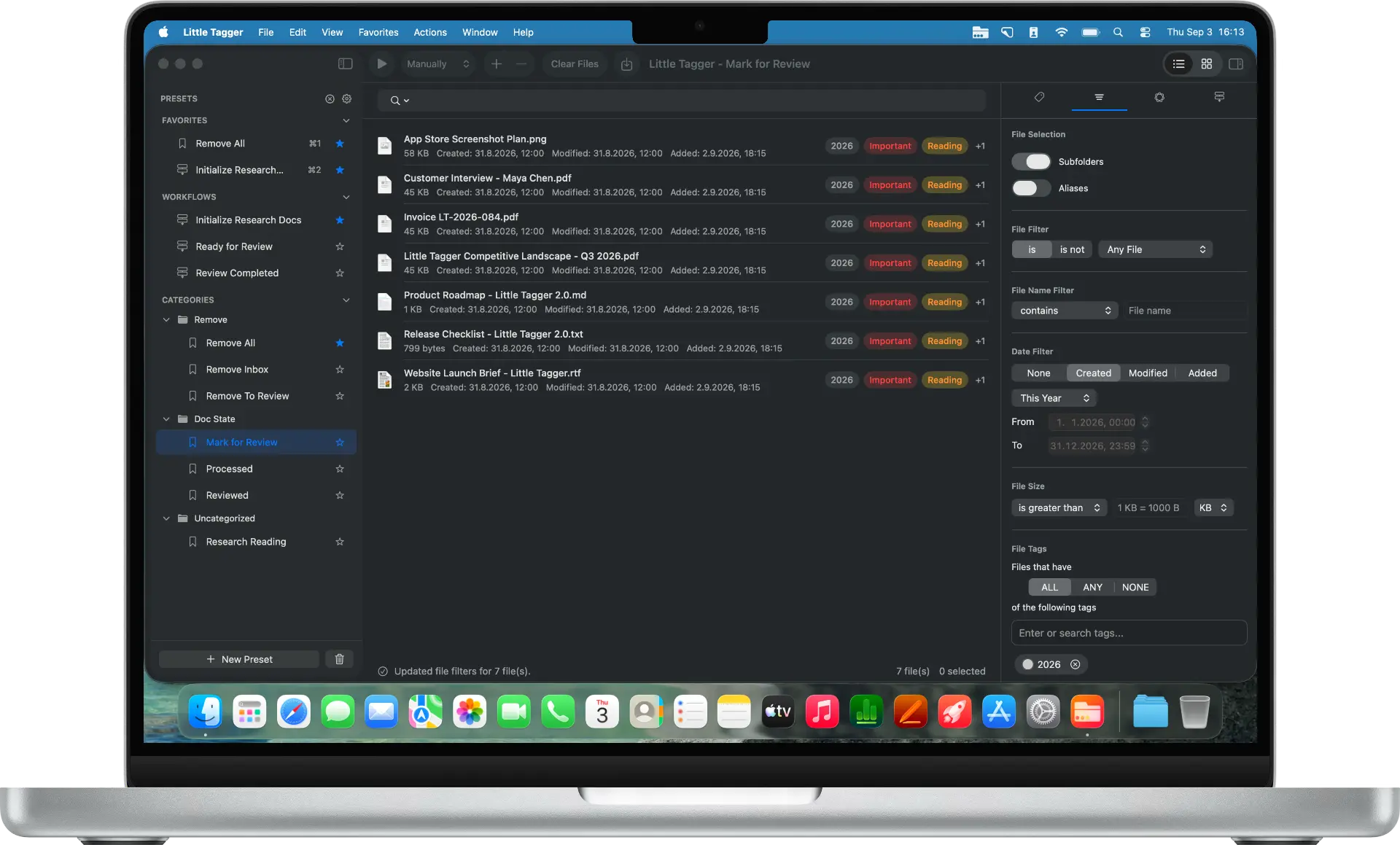
Start with the tagging method
Little Tagger writes standard Finder tags. It leaves filenames, file locations and file contents unchanged while performing tagging actions.
TagSpaces documents two file-tagging methods: tags in filenames, or tags in JSON sidecar files inside a hidden .ts folder. Sidecar tagging preserves the original filename. Those methods should not be treated as interchangeable with Finder tags. See the TagSpaces tagging documentation.
That distinction is worth understanding before labeling a large collection. Think about where you need to read the tags next, not just where you will apply them today.
What does each approach fit?
| Priority | Better starting point |
|---|---|
| Work with tags you already use in Finder | Little Tagger |
| Use a file workspace on macOS, Windows and Linux | TagSpaces |
| Reuse focused Finder-tag actions | Little Tagger presets and workflows |
| Combine file organization with notes and other workspace views | Explore TagSpaces |
| Keep names unchanged while tagging | Little Tagger, or TagSpaces with sidecar tagging |
TagSpaces offers a broader local-first workspace that includes notes and different ways to browse files. Its product overview describes the platforms and features; check the relevant edition for the tools you need.
Little Tagger stays focused on applying and maintaining Finder tags. It is not a cross-platform document workspace.
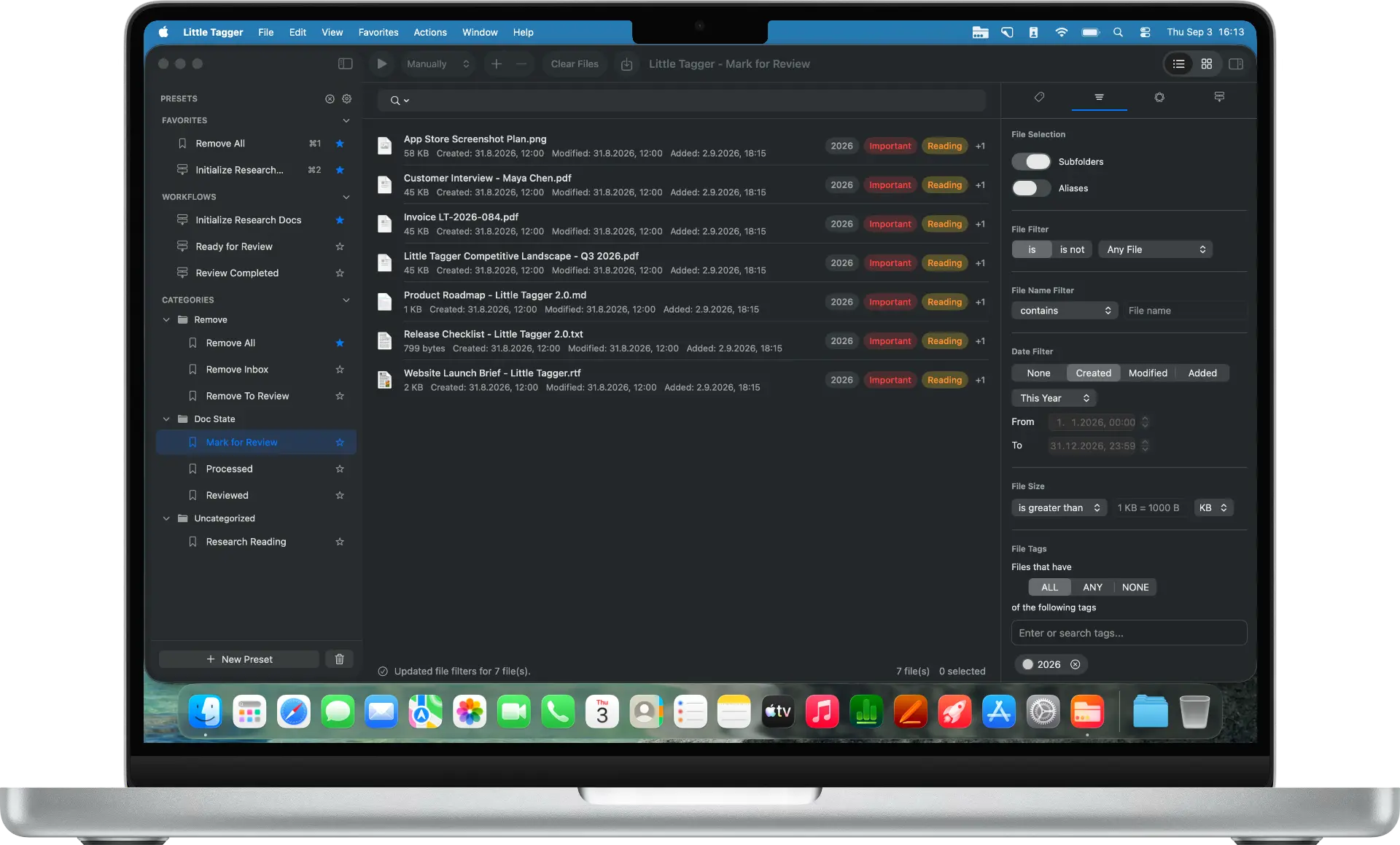
Little Tagger works on the files you supply, using native Finder tags.
Do you have to rename files with TagSpaces?
No. Filename tagging is one option, not a requirement. Sidecar mode stores the tag data separately.
The tradeoff is keeping that separate metadata with the files. TagSpaces' documentation explains that external moves or renames can require corresponding sidecar maintenance, and syncing needs to include the relevant hidden folders.
For either product, test the actual route your files will take. A workflow that stays on one Mac has different requirements from a collection passed between operating systems.
Test your real handoff
Before committing a library, create a disposable sample with a few documents and images. Give the files names and tags that you will recognize.
Try the actions you normally perform: rename a file in your everyday file manager, copy a folder to another device, restore it from backup and open it in the application you use next.
Check three things separately: whether the file arrived, whether its tags arrived and whether the receiving app can read them. A successful file copy does not by itself answer all three questions.
Use the results from that sample to decide whether the storage method fits your work.
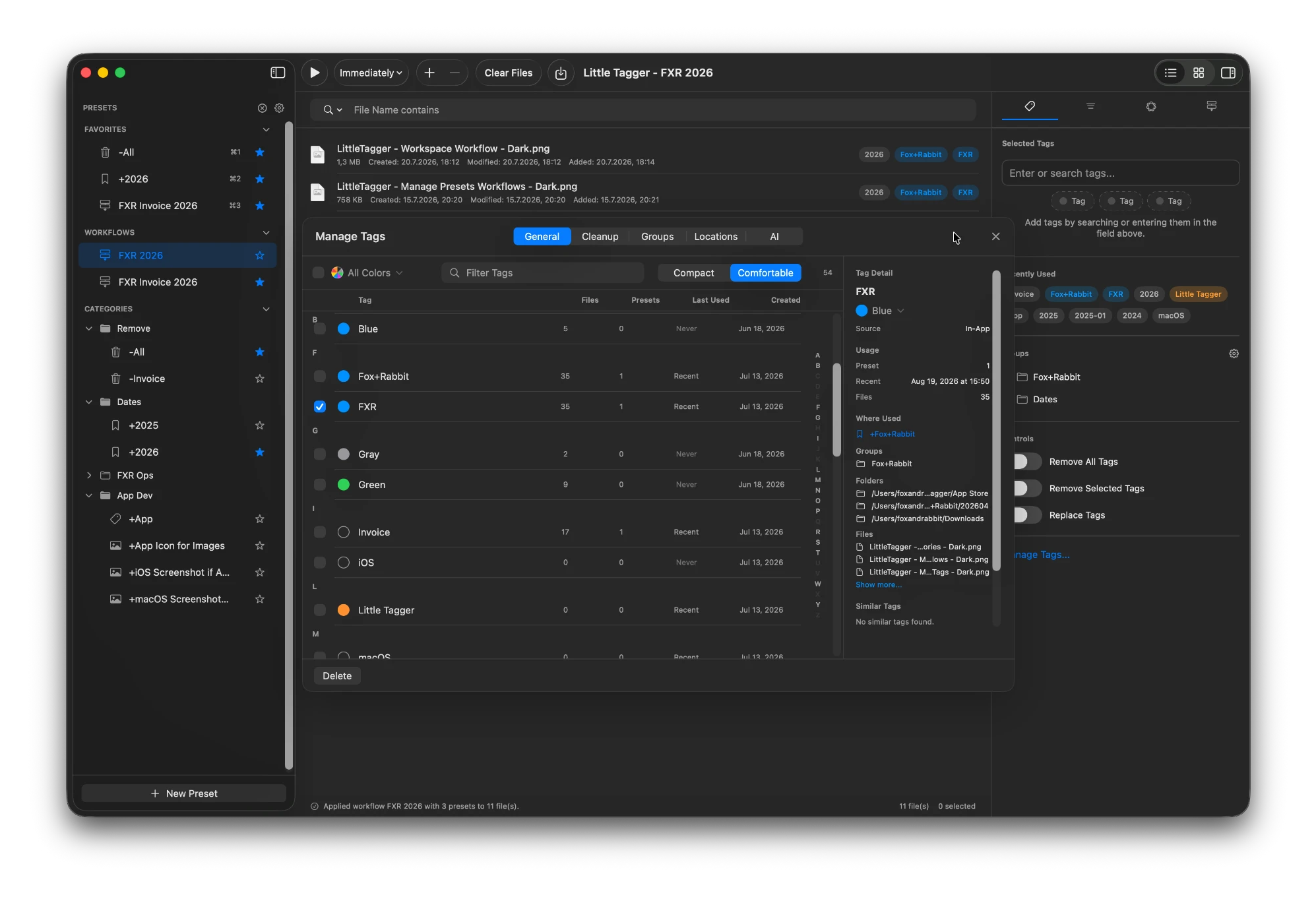
The tag library gets its own workspace: usage, groups and similar names in one place.
Where Little Tagger fits
Little Tagger is intended for a Mac workflow built around existing files. You choose what enters its workspace, apply tags manually or through saved actions, and maintain the vocabulary within the locations you approve.
An Add preset can reuse a familiar project combination. An ordered workflow can remove an obsolete status before adding its replacement. Tag groups help arrange the vocabulary inside the app without creating another folder structure.
This is useful when Finder compatibility and repeated tagging are the problems you want to solve.
Privacy alone does not decide this comparison
Both products describe local operation. It would be misleading to frame this as a private app versus an app that requires uploading your documents.
Instead, consider the full setup: storage method, optional AI, any sync service you choose and the applications that need the files next. Local processing and cloud synchronization are separate choices.
Do not assume tags will automatically synchronize between the two apps. Establish a deliberate metadata approach before using both on the same collection.
Choose the workflow you want to keep
For a cross-platform workspace, explore TagSpaces. For reusable tagging and tag-library maintenance that stay native to Finder, try Little Tagger.
Keep your files where they are. Make the tagging repeatable.
Tag files in seconds, automate recurring tagging work and take control of your entire tag system. Private, native, built for Mac.

Free for 7 days · No account required · macOS 15+ · Intel or Apple silicon